Breaking the Instagram Login Loop: A Comprehensive Guide to Resolving the Issue
Published 6/12/2026 · English-only editorial content
Introduction to Instagram Login Loop The Instagram login loop is a frustrating issue that many users face, where they are unable to log in to their accounts despite entering the co...
Introduction to Instagram Login Loop
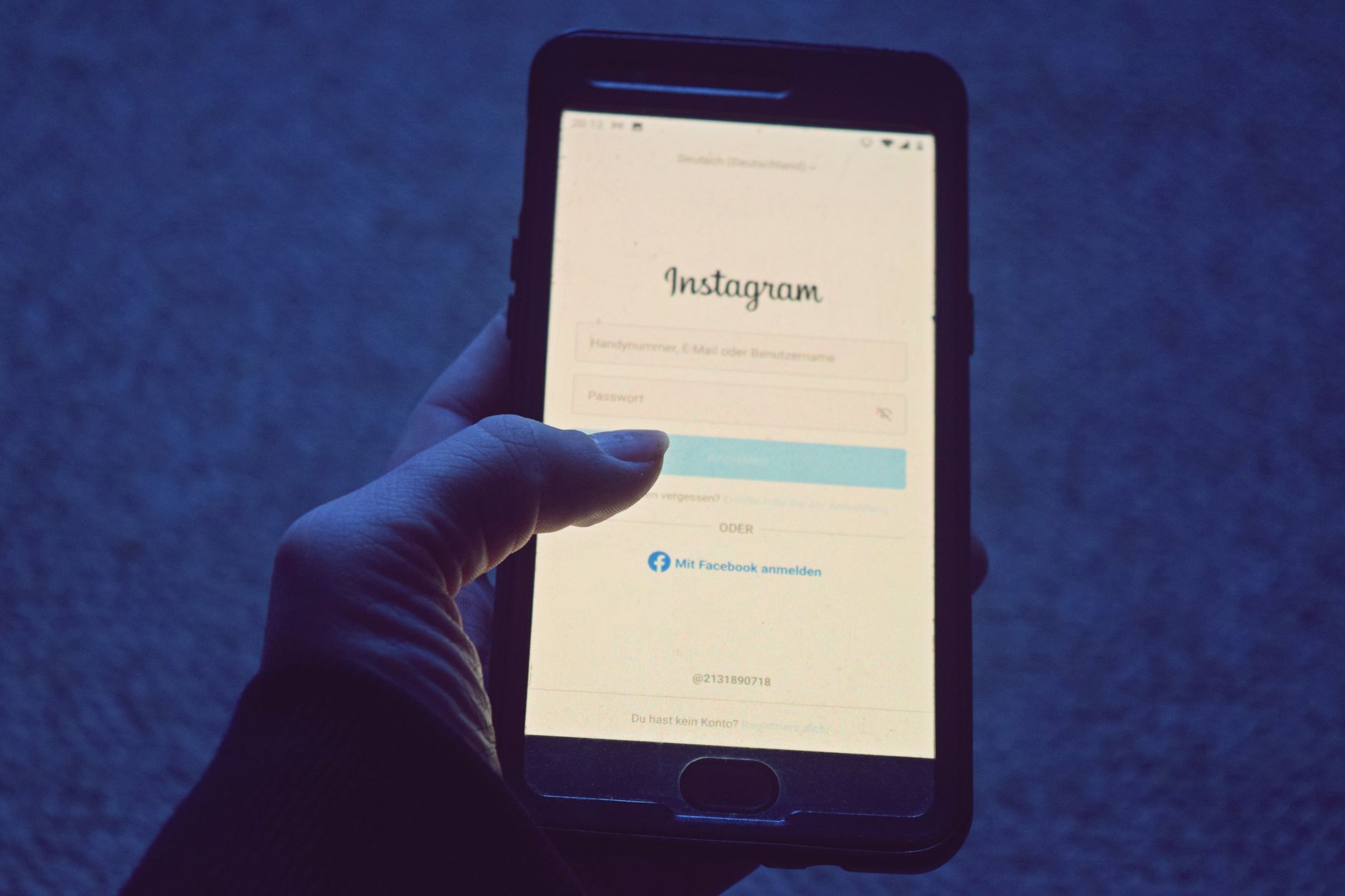
The Instagram login loop is a frustrating issue that many users face, where they are unable to log in to their accounts despite entering the correct credentials. This problem can occur due to various reasons, including security measures, browser issues, or account restrictions. In this article, we will delve into the possible causes of the Instagram login loop and provide step-by-step solutions to resolve the issue.
Understanding the Instagram Login Loop
The Instagram login loop typically occurs when a user attempts to log in to their account, but instead of being redirected to their feed, they are taken back to the login page. This can happen even if the user enters the correct username and password. The issue can be caused by a variety of factors, including:
- Security measures: Instagram has implemented various security measures to protect user accounts, such as two-factor authentication and login verification. If these measures are not set up correctly, it can lead to a login loop.
- Browser issues: Browser cache, cookies, and extensions can sometimes interfere with the login process, causing the loop.
- Account restrictions: If an account is restricted or suspended, the user may experience a login loop.
- Network issues: Poor internet connectivity or network configuration can also cause the login loop.
Troubleshooting the Instagram Login Loop
To resolve the Instagram login loop, follow these steps:
- Clear browser cache and cookies: Clearing the browser cache and cookies can help resolve the issue. To do this, follow these steps:
- For Google Chrome: Press
Ctrl + Shift + R(Windows) orCommand + Shift + R(Mac) to reload the page, then go toSettings>Privacy and security>Clear browsing data. - For Mozilla Firefox: Press
Ctrl + Shift + R(Windows) orCommand + Shift + R(Mac) to reload the page, then go toOptions>Privacy & Security>Clear Data.
- For Google Chrome: Press
- Disable browser extensions: Disable all browser extensions and try logging in again. If the issue is resolved, enable the extensions one by one to identify the problematic extension.
- Check account restrictions: If an account is restricted or suspended, the user will need to resolve the issue with Instagram support.
- Reset password: If the user is unsure about their password, try resetting it. To do this, follow these steps:
- Go to the Instagram login page and click on
Forgot password. - Enter the username or email address associated with the account.
- Follow the instructions to reset the password.
- Go to the Instagram login page and click on
- Try a different browser or device: Try logging in from a different browser or device to see if the issue is specific to one browser or device.
Advanced Troubleshooting
If the above steps do not resolve the issue, try the following advanced troubleshooting methods:
- Check for malware: Malware can sometimes cause the login loop. Run a virus scan on the device to detect and remove any malware.
- Check network configuration: Check the network configuration to ensure that it is not blocking the login process.
- Contact Instagram support: If none of the above steps resolve the issue, contact Instagram support for further assistance.
Preventing the Instagram Login Loop
To prevent the Instagram login loop, follow these best practices:
- Use strong and unique passwords: Use strong and unique passwords for all accounts, including Instagram.
- Enable two-factor authentication: Enable two-factor authentication to add an extra layer of security to the account.
- Keep browser and operating system up to date: Keep the browser and operating system up to date to ensure that the latest security patches are installed.
- Use a reputable antivirus software: Use a reputable antivirus software to protect the device from malware.
Conclusion
The Instagram login loop can be a frustrating issue, but it can be resolved by following the steps outlined in this article. By understanding the possible causes of the issue and taking steps to prevent it, users can ensure a seamless login experience. Remember to always use strong and unique passwords, enable two-factor authentication, and keep the browser and operating system up to date to protect the account from security threats.
Related articles
Recovering Your Instagram Account from Suspension: A Step-by-Step Guide
Introduction to Instagram Suspension Instagram, being one of the most widely used social media platforms, has strict policies to ensure a safe and enjoyable experience for all its...
ReadA Comprehensive Guide to Instagram Account Recovery Management
Introduction to Instagram Account Recovery Management Instagram, with its vast user base, is a prime target for cyber attacks and account compromises. Managing the recovery of an I...
ReadRecovering Your Instagram Account in 2026: A Comprehensive Guide
Introduction to Instagram Account Recovery Instagram, with its vast user base and extensive features, has become an indispensable platform for both personal and professional use. H...
Read